


There are two types of price rules in Magento : Catalog Price Rules and Shopping Cart Price Rules . Catalog price rules are applied to products before they are added to the cart , while Shopping Cart Price Rules are applied to products in the cart .
Home › Informatie › Pricing rules
There are two types of price rules in Magento : Catalog Price Rules and Shopping Cart Price Rules . Catalog price rules are applied to products before they are added to the cart , while Shopping Cart Price Rules are applied to products in the cart .
CATALOG PRICE RULES
Catalog price rules are applied to products before they are added to the cart . They can be used to create , without the customer having to enter . Discount code bargains and discounts The process of determining a catalog price rule can be divided into three phases:
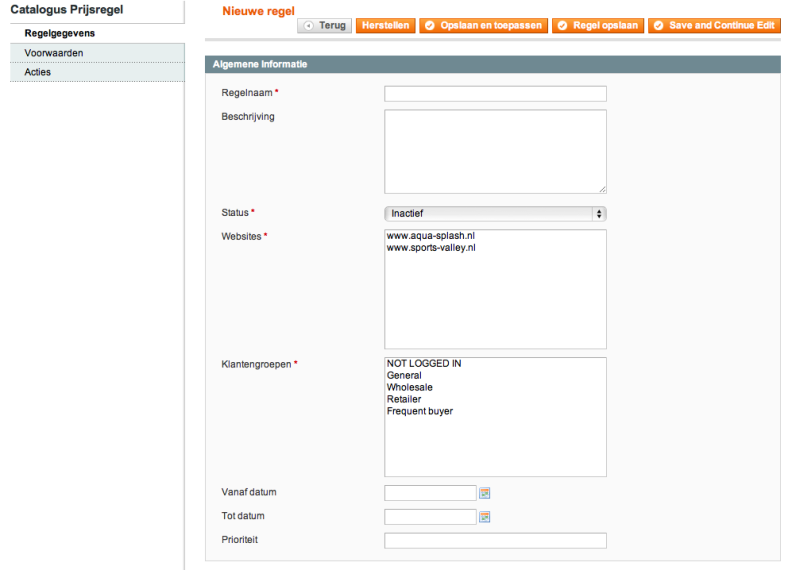
THE CATALOGUE PRICE RULE PROVIDING INFORMATION
A catalog price rule creation:

It is possible to use if multiple rules. The Priority field (1 is the highest priority). So can be determined which rule is used if there are multiple Catalog Price Rules apply.
THE CATALOGUE PRICE RULE DETERMINING CONDITIONS
If the general information for the price rule is given once, the conditions must be created that specify when the rule applies.
The following example shows how every shampoo that costs more than € 10 , – can ben given a discount of 10% by creating a rule with two conditions.
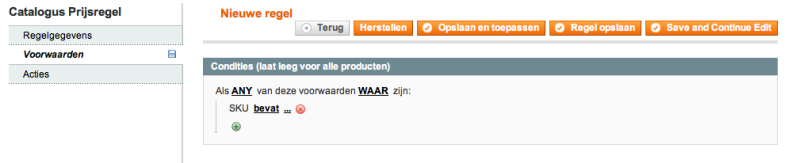
1. Select when adding a new line Conditions on the left of the screen to display the following page tab:

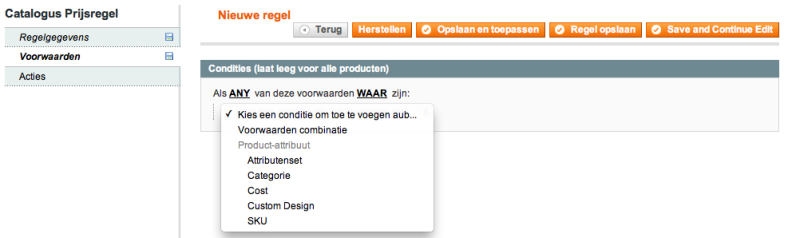
2. The first line is displayed by default: If ANY of these conditions are TRUE. It specifies whether their should be complied with all conditions or only a few conditions are needed to comply with the rule. In our rule we want it to comply if the product is shampoo or if the product is more expensive than €10,-. Click on the word ALL on the page above and select ANY.

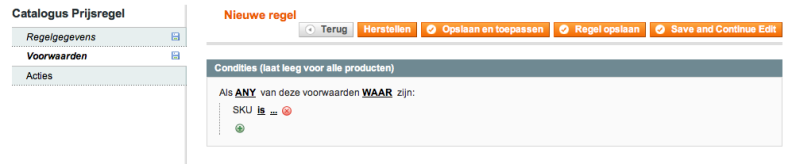
3. Click the icon to display a selection field and select the option under SKU Product Attribute in the dropdown menu. The following page is displayed :

4. Click the link to display the following screen:

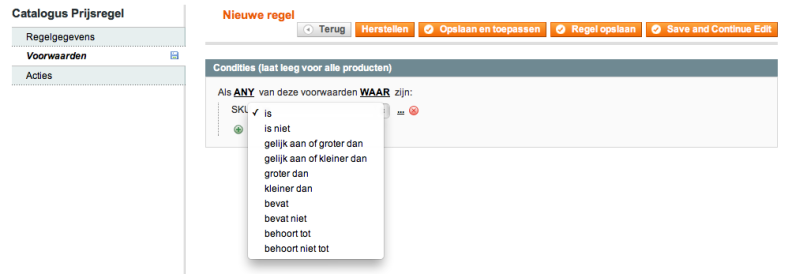
5. Select contains in the selection
6. Click on the three dots to display the following:

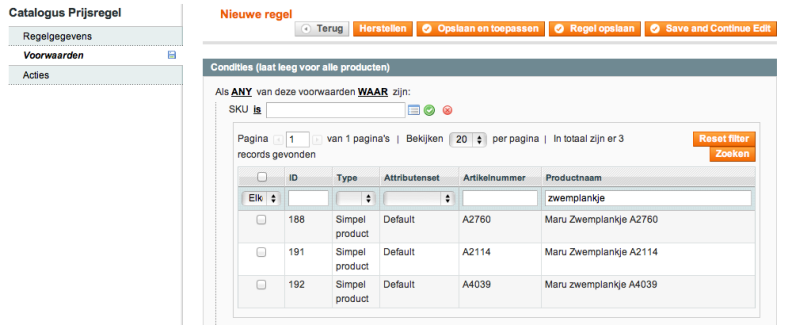
7. Click the green plus sign to indicate that you can select as shown below a list of products again :

The above page shows a filtered list of products which show only the products that have the word kickboard in their name.
8. Check the boxes of the products to which the rule applies.
9. Save this selection of products by clicking on the green round icon.
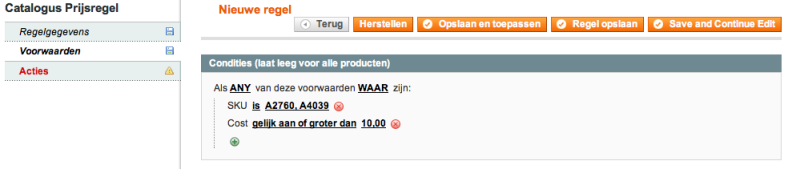
10. Now this rule specifies that it applies to Swim suits. First we go to the condition that the product must be more expensive then €10,-. create this before the rule can apply.To do this, click on the icon (green circle with the + sign) to indicate a selection. select Cost under Product Attribute in the dropdown menu.
11. Click on the link and select equal to or greater than in the dropdown menu .
12. In the field on the right, enter the value 10.00 in order to create as shown below, the second condition:

THE CATALOGUE PRICE CONTROL MEASURES TO DETERMINE
Now the conditions are defined, you must define the actions that go if the conditions are met. The following states that there is a discount of 10 % on Swim suits.
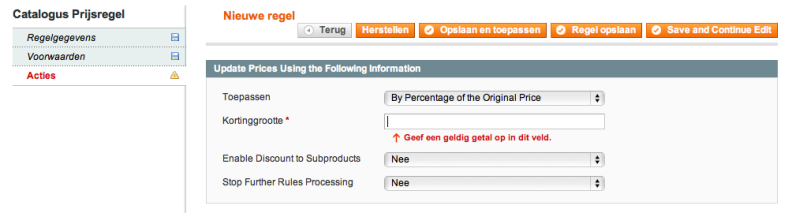
1. Select when adding a new line the Actions tab on the left side of the screen to display the following page:

2. The dropdown menu on the Apply button allows you to define whether the discount specified in the Discount Amount field is a percentage or a fixed amount from the price of this product. It also allows you to define whether the discount amount is derived from the original price or the discount amount will determine the final price. For our example, select Apply in the field, at percentage of the Original Price and enter the value in 10:00. This determines the final price that gives 10% discount on the original price. If you select a percentage of the Original Price accidentally, the final price will be equal to 10% of the original price. This would mean a reduction of 90% .
3. Select the Save button bar to create the rule.
4. You also need to click the Save button, and click Apply or Save Rule to rule on the selected products. Immediately applicable If you add new rules, the system must recalculate the prices and the priority of the rules. In general, system rules are automatically processed and applied every night. If you want to apply the new rule immediately, you must click Apply one of the above buttons.
CART PRICE RULES
Shopping cart price rules, as the name suggests, are used when the customer reaches the cart. They can be used with or without a discount code of the customer and include features you will not find in traditional applications for coupons. This example defines a simple 10% discount voucher for the sale of clogs in cases where the total amount of shopping is over € 100 , – .
The process of defining cart price rules can be divided into three phases :
1. The cart price rule determining information, the determination of general information about this rule.
2. Cart define price rule and Conditions, the determination of the conditions attached to the rule.
3. The cart price rule actions, determining the actions taken when the conditions of the rules are met .
THE CART PRICE RULE PROVIDING INFORMATION
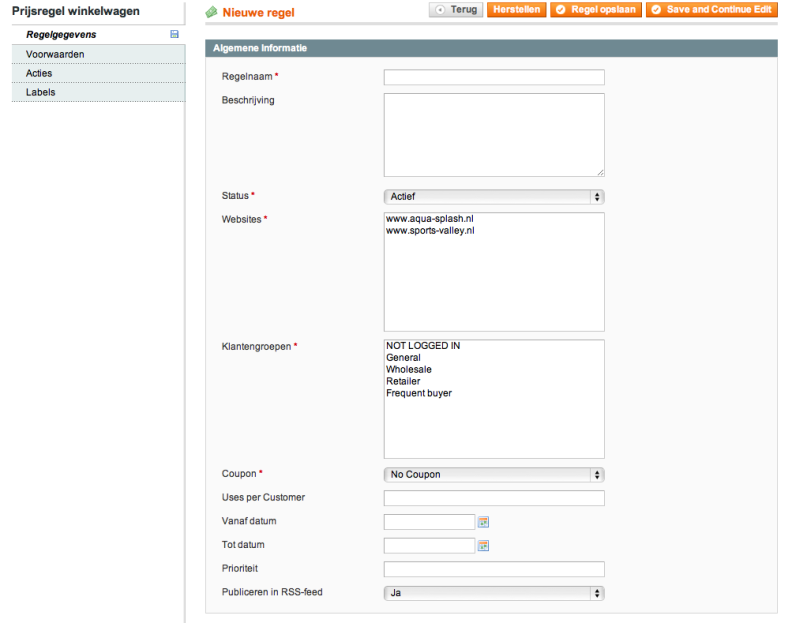
1. Promotions in the menu of the CMS, select the Add option pricing rules, and then click Add New Rule right corner in the screen. You will see the following page:

2. Fill in the Rule Name field and the Description field for this cart price rule .
3. In the Status field, select Active .
4. In the Customer Groups field, select the customer group to which this rule applies to .
6. To determine that each customer can use the code only once, fill in the field Uses per Customer 1. If you would like to create so that the coupon can be used only 100 times for a limited offer, fill in the field using a voucher to the value 100.
7. In the field From Date and To Date field, set a time frame from which the discount code is valid. If you leave these fields blank, the rule will take effect as soon as it is created. You can use the Priority field (1 is the highest priority) as there are multiple lines. So you can determine which rule is if there are multiple Cart Price Rules apply.
THE RULE OF CART USE PRICE DETERMINATION
Once you have the general information provided for the price rule, you must create the conditions that specify when the rule applies. The following example shows how you can create a condition which is satisfied if the total of the cart is more than one line of € 100 , – . Select the Conditions tab to the left of your screen and find the following lines:

THE CART PRICE CONTROL MEASURES TO DETERMINE
Now the conditions are defined , you must define the actions that go if there is compliance with the conditions . The following provides that a discount of 10 % is the original price of the product .
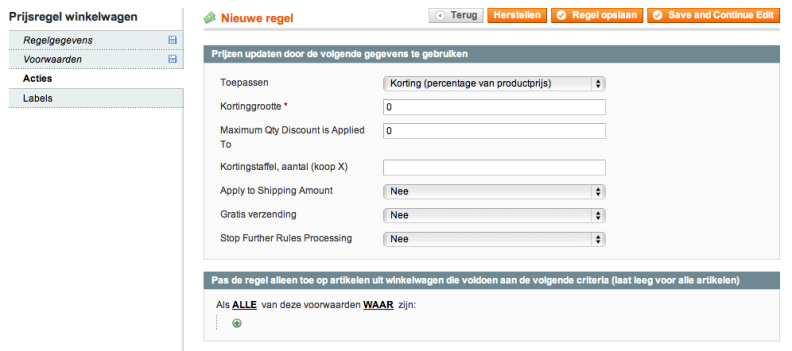
1. Select Actions on the left side of your screen to display the following page tab :

2. The Actions tab has two main sections . The first section controls the discount. In the field , select Apply Discount (percent craze of product price ) .
3. In the Discount Size field, enter 10 to indicate that the original price is reduced by 10 % . There are also other options available that are not associated with this example, as Fixed Amount Discount , Fixed Discount amount for entire cart and Buy X and get Y free (discount amount is Y )
4. In the Maximum Qty Discount is Applied To specify the maximum number of products to which the discount applies. If you enter in this field five , the first five products of this type that are sold in the same shopping cart to get a discount of 10 % . The sixth product or not . Receive this discount
5 . The Scale of discount , field number (buy x ) specify how often the discount should be applied . For our example , this field is not relevant , so you can leave it blank . If you consider fill in this field, this means that the 10% discount will be applied to all products in the cart until eight products have been added to the cart. If more than eight products are in the cart , get the ninth to the fifteenth product is not the 10 % discount until the sixteenth product is added to the cart. Than the 10 % discount applies to all sixteen products. This discount shall be applied in each factor of eight , and is especially useful for products sold by eight .
7. After you have determined the discount rule as above , select the products which the discount applies. In our example, the discount amount for the category Accessories applies.

8. Click the Save Rule.
DETERMINATION OF 2 FOR THE PRICE OF 1 PROMOTION
This section describes how to create a product where the customer gets two products for the price of one a discount. In this example, the shop is trying to sell a digital camera as a family. Deal This is a cart price rule .
1. Determine the discount rule information as described above, but leave the field blank coupon . This means that the reduction in force once the customer adds a product to the cart .
3. Determine the action that applies when the above condition is met. Apply field , select the option Buy X and get Y free (discount amount is Y) .
4. Now click on the button Save Rule .
5 . Now you can send your customers advertising message that they get one free . If they buy 3 Argus QC – 2185 Quick Click 5MP Digital Cameras.
It is useful to test before you try them on your customers . Rules yourself first Use or discount code that only you know or give you test client for a test group of customers and limit the application of the rule to only those customers group .
This website uses cookies to improve your experience while you navigate through the website. Out of these cookies, the cookies that are categorized as necessary are stored on your browser as they are essential for the working of basic functionalities of the website. We also use third-party cookies that help us analyze and understand how you use this website. These cookies will be stored in your browser only with your consent. You also have the option to opt-out of these cookies. But opting out of some of these cookies may have an effect on your browsing experience.
Necessary cookies are absolutely essential for the website to function properly. This category only includes cookies that ensures basic functionalities and security features of the website. These cookies do not store any personal information.
Any cookies that may not be particularly necessary for the website to function and is used specifically to collect user personal data via analytics, ads, other embedded contents are termed as non-necessary cookies. It is mandatory to procure user consent prior to running these cookies on your website.
No products in the cart.